DIVE Online Web Portal - Settings
The Settings section of the DIVE Online Web Portal allows you to configure various options that affect how verification requests are processed and managed. Here, you can adjust parameters such as verification thresholds, response attempts, and other preferences to tailor the verification process to your specific needs.
The Settings page is divided into several sections, each focusing on a different aspect of the verification process:
- Confidence Score : Set the minimum confidence score required for a successful verification. This score determines how strictly the system evaluates the authenticity of the documents and the identity of the user.
- Data Retention and Submission Limits : Configure how long verification data is retained and set limits on the number of submissions allowed within a specific session.
- Notification : Manage how and when you receive notifications about verification requests and their outcomes.
- Consent Form : Customize the consent form that users must agree to before their verification process begins.
- Integration : Set up integration options for certain checks, such as watchlist screening or DMV verification.
To access and modify these settings, log in to the DIVE Online Web Portal and navigate to the "Settings" section. Make sure to save any changes you make to ensure they are applied to future verification requests.
Confidence Score
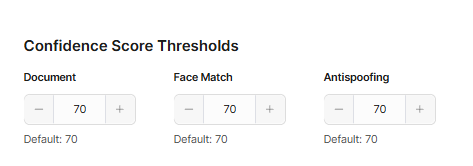
- Document Confidence Score : Set the minimum confidence score for document verification. A higher score means stricter verification.
- Face Match Confidence Score : Set the minimum confidence score for face matching. A higher score means stricter verification.
- Anti-Spoofing Confidence Score : Set the minimum confidence score for anti-spoofing checks. A higher score means stricter verification.
Data Retention and Submission Limits
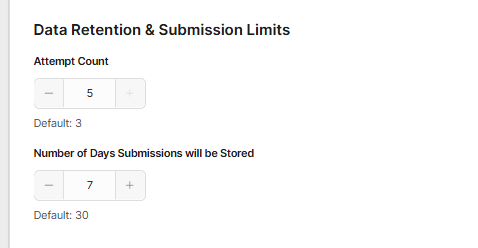
- Attempt Count : Specify the number of attempts allowed for a user to complete the verification process within a single session. 1-5 attempts can be set.
- Data Retention Period : Define how long the verification data will be stored in the system. Options range from 0 days (immediate purge) to 365 days.
Notification
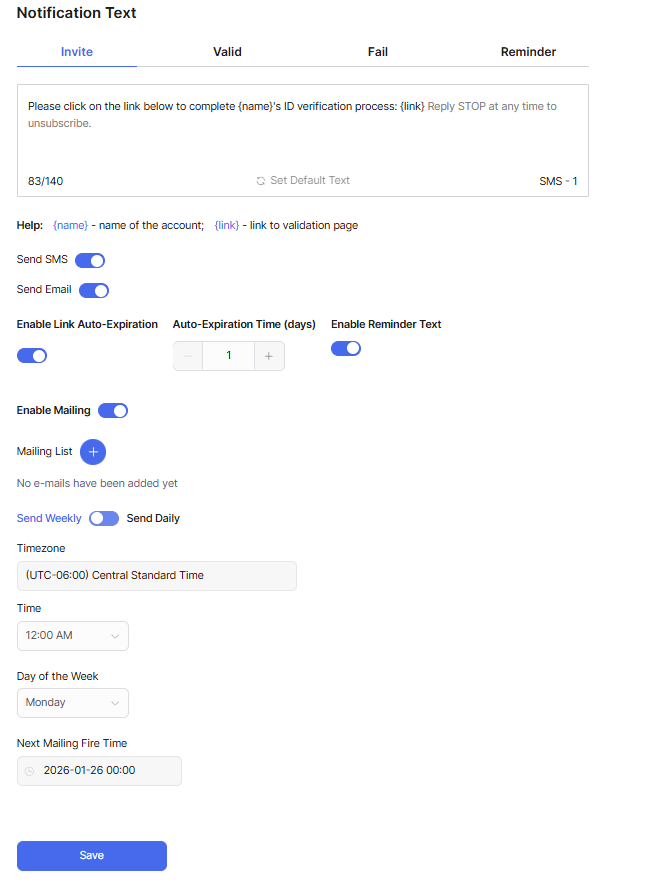
Text : Change the text that will be sent to users when they receive an SMS or Email for verification.
- Invite: The initial message sent to users inviting them to complete the verification process.
- Valid: The message sent to users when their verification is successful.
- Failed: The message sent to users when their verification fails.
- Reminder: The message sent to users as a reminder to complete their verification if they have not done so within a specified time frame.
Send SMS/Email : Enable or disable the sending of SMS or Email notifications to users during the verification process.
Enable Link-Auto Expiration : Set an expiration time for the verification link sent to users. Options range from 1 to 5 days.
- Reminder Text : Enables the Reminder text message. This setting is depedent on Link-Auto Expiration being enabled.
Days until expiration : Set the number of days until the verification link expires. Options range from 1 to 5 days.
Daily/Weekly Summary : Enable or disable the sending of daily or weekly summary reports to the emails of your choosing. These reports provide an overview of verification activities and outcomes.
- Frequency : Choose the frequency of the summary reports, either daily or weekly.
- Recipients : Specify the email addresses that will receive the summary reports. You can add multiple recipients as needed.
Scan Activity : Sends a report of an attempt status during an applicant session to the emails of your choosing. You can also set this report to automatically send the report to the portal user who initated the applicant session.
Consent Form
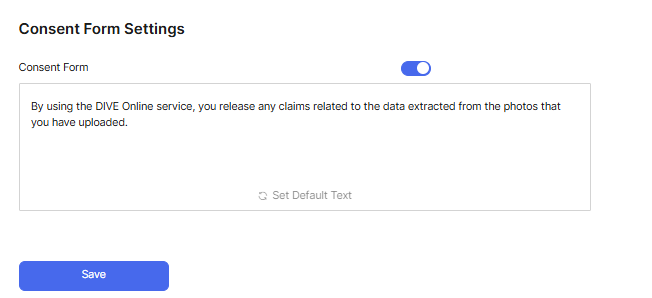
- Enable Consent Form : Toggle to enable or disable the consent form that users must agree to before starting the verification process.
Integration
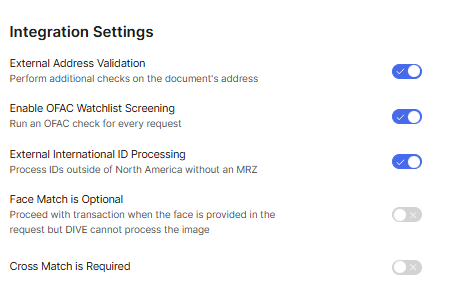
External Address Validation - Enabling this flag sends the address on the document to a third-party service to public address records.
Enable OFAC Watchlist Screening - Enables the OFAC checks from IDScan.net
External International ID Processing - Enables processing of International IDs through a third party for greater document coverage. Please contact your account manager at IDScan.net if you are interested in this feature.
Face Match is Optional - Allows the user to make face match mandatory if disabled. If enabled, a transaction that cannot process face match but can still perform all other checks will be allowed to complete.
Cross Match Required - This setting means if a user submits a document with two sides, they must submit both sides of the document with good quality.
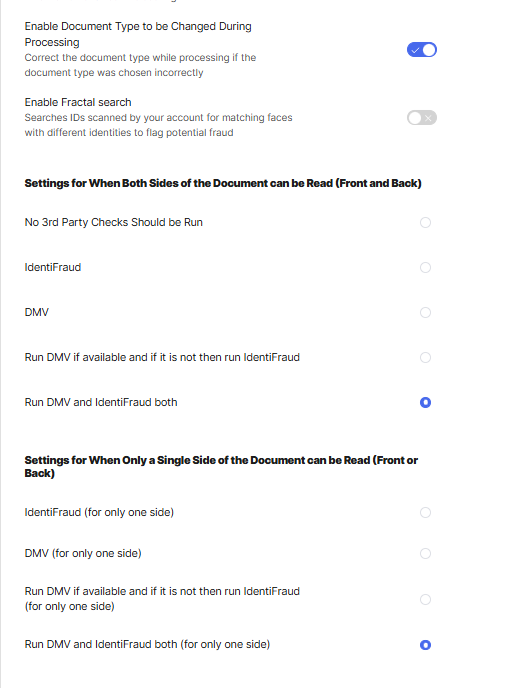

Enable Document Type to be Changed During Processing - This flag will enable the system to attempt a document type reassignment when the end user submits under the wrong type.
Enable Face Trace - This setting enables the Fractal Search which is a 1-to-many facial recognition search across all transactions. For example, one person could attempt to verify multiple times under different names or different people could attempt to verify under the same name. The Fractal Search will identify these types of scenarios.
If Document Confidence is < 30%, do not run 3rd Party Checks - This setting will prevent the system from running any third-party checks (DMV, OFAC, etc) if the document confidence score is below 30%. This can help save costs on third-party checks for documents that are unlikely to be valid.
Settings for When Both Sides of the Document can be Read (Front and Back) -This configures the DMV and IdentiFraud third-party services when a submission is completed.
- If the user has the configuration to only one side of a document intentionally (ex: barcode only), the two-sided settings will be reflected.
Settings for When Only a Single Side of the Document can be Read (Front and Back) - This configures the DMV and IdentiFraud third-party services when a submission that could only read one side is completed.
- Example: End user submitting front and back, but the front image is too blurry. This setting only appears when "Cross Match is Required" is set to false.
SAM
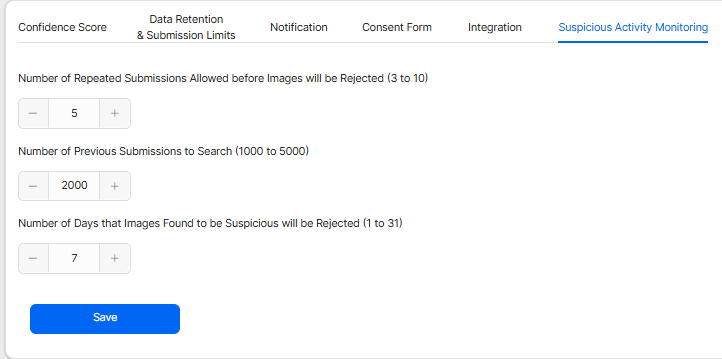
How Many Repeated Submissions are Allowed before Images will be Rejected?
- 3 (Minimum)
- 10 (Maximum)
How Many Previous Submissions Should be Searched for a Repeated Submission?
- 1000 (Minimum)
- 5000 (Maximum)
How Many Days Should Images That Have Been Found to be Suspicious be Rejected?
- 1 Day (Minimum)
- 31 Days (Maximum)