DIVE Online Web Portal - Verification Requests
The Verification Requests page of the DIVE Online Web Portal allows users to create new verification requests and review the history of previously made requests along with their associated responses.
This page provides an overview of all verification requests, including details such as request ID, date and time of the request, status, and results.
For DIVE Online users on the "No Code" workflow, this page also allows for the manual upload of documents for verification.
Any scans on the integrated "Low Code" or "Full Embed" DIVE Online implementations will also appear here for review.
To create a new verification request, follow these steps:
1.) Navigate to the "Verification Requests" page of the DIVE Online Portal. This is the default page upon logging in.
2.) Select the blue "Verification Request" button on the top right.

Initiate the request through email, phone number, or manual upload. Manual upload does not require phone or email.
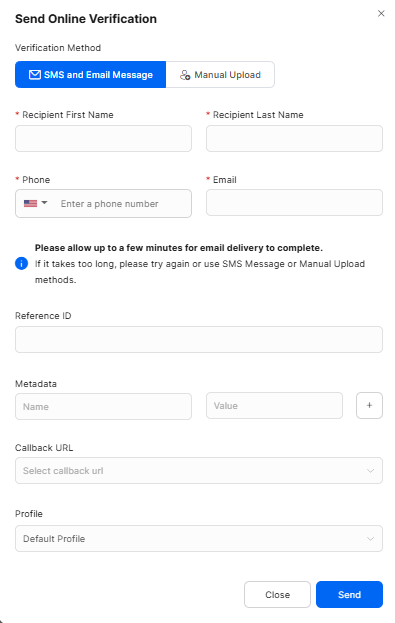
- Recipient First Name : Enter the first name of the recipient.
- Recipient Last Name : Enter the last name of the recipient.
- Recipient Email : Enter the email address of the recipient.
- Recipient Phone Number : Enter the phone number of the recipient.
- Reference ID : (Optional) Enter a reference ID for the request. This can be used for internal tracking purposes. For example, an invoice number or customer ID.
- Metadata : (Optional) Enter any additional metadata relevant to the request. This can include information such as the purpose of the verification or any specific instructions for processing the request.
- Callback URL : (Optional) Enter a callback URL where the verification results will be sent once the process is complete. This is useful for integrating the verification results into your own systems or applications.
- Profile : Select the desired verification profile from the dropdown menu. The profile determines the specific verification checks and criteria that will be applied to the request.
3.) Press the blue "Send" button. The DIVE Online request has successfully been created.
4.) The newly created request will now appear in the list of verification requests on the main page.
5.) Once the verification process is complete, the status and results of the request will be updated accordingly.