License Management
This section provides an overview of the license management system for the .NET ID Parsing SDK, including license models, controller types, and step-by-step activation instructions.
License Models
The SDK supportss:
Per Seat License — Binds a license to a specific device using its hardware ID (HWID). The license will only function on the device(s) it is bound to. Supports both online and offline validation.
my.idscan.net Portal
License management is handled through the my.idscan.net portal, where you can view license status, manage HWID bindings, and download license files.
Credentials are provided by your account manager after purchasing a license. If you are migrating from a previous version of the SDK, IDScan.net will provision new portal credentials and associate your existing licenses at no additional cost.
Hardware ID (HWID)
The Per Seat license model uses hardware ID (HWID) binding for device-level security. If the HWID on the device does not match the one associated with the license, validation will fail and the application will not function until a valid license is provided.
IDScan.net has provided a utility tool to generate the HWID on the target device. The generated HWID can then be used to bind the license to that specific device through the portal or other methods.
Please refer to the HWID generation tool documentation for instructions on how to generate the HWID and use it for license activation.
Additionally, the App Manager Command Line Tool can also be used to retrieve hardware information and manage license bindings in bulk, which is especially useful for large deployments.
License Controllers
The SDK provides two license controllers:
InMemoryLicenseController — Validates the license against the licensing server on every application start. Requires an internet connection each time. Accepts a serial number or license file. No local caching.
PersistentLicenseController — Validates the license on first use and caches it locally, allowing subsequent starts without an internet connection. Ideal for environments with intermittent or no connectivity. Accepts a serial number or license file.
| Controller | Internet Required | License Input | Caching |
|---|---|---|---|
InMemoryLicenseController |
Every start | Serial number or license file | None |
PersistentLicenseController |
Initial validation only | Serial number or license file | Local cache |
Note
Both controllers can check license status against the server during operation. This means the license state may change mid-session (e.g., license expired or revoked).
Important
If your application may run in environments with unreliable or no internet access, consider using PersistentLicenseController. Unlike InMemoryLicenseController, it does not require a server round-trip on every start after the initial validation. Note that both controllers cannot be used simultaneously without custom fallback logic in your application code.
Online Licensing
Use this path when the target device has internet access.
Step 1: Obtain Your License Information
- Log in to my.idscan.net using the credentials provided by your account manager.
- Navigate to My Products, then open the ID Parser license page.
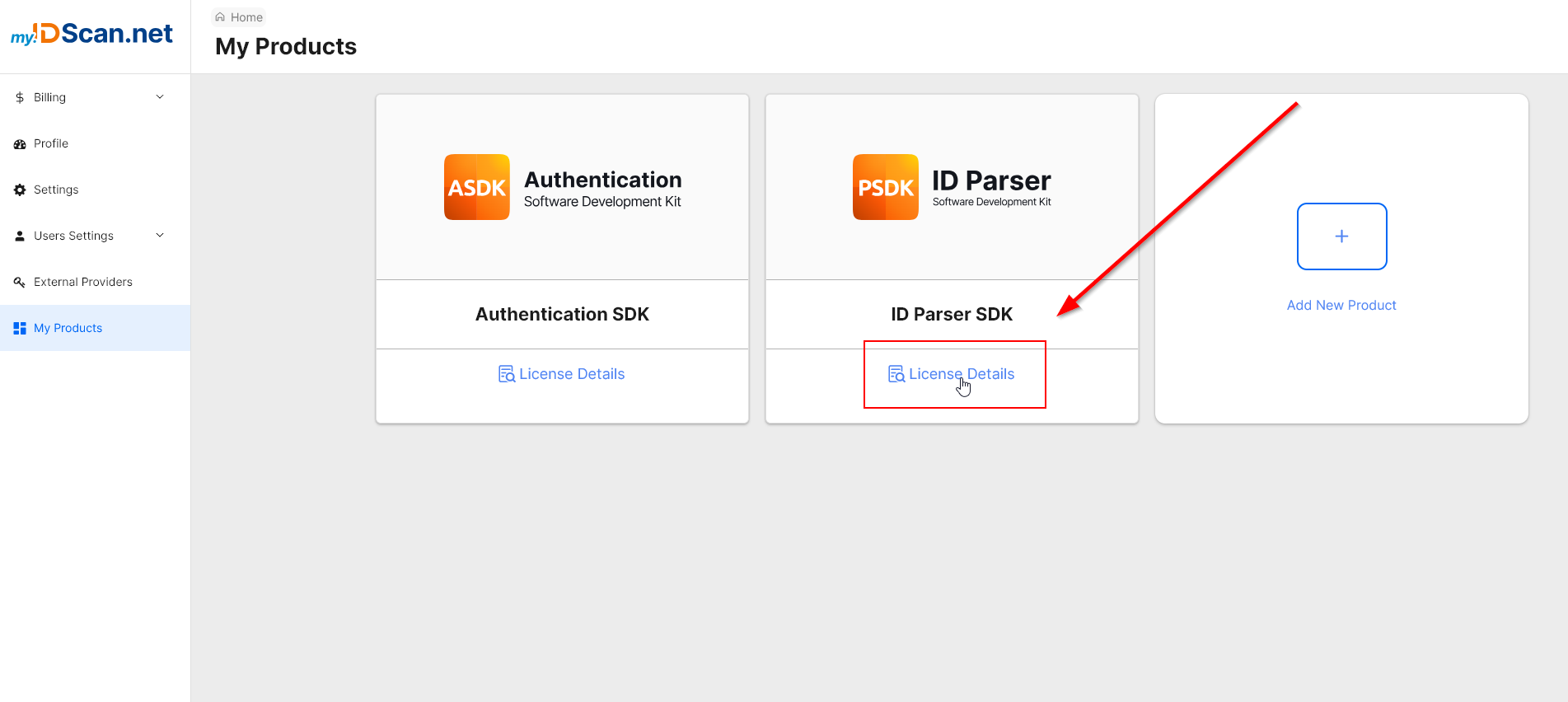
- Select the required license from the list and click Action to open the license details page.

Step 2: Activate the License
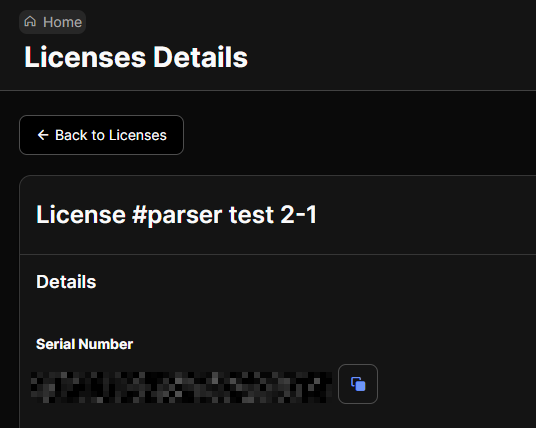
Per Seat License — Bind the device to the license and activate it by integrating the serial number (found on the license page) into your SDK code. Either InMemoryLicenseController or PersistentLicenseController can be used depending on your connectivity requirements.
The license can be activated in the following ways:
my.idscan.net Portal
- Log in to my.idscan.net, navigate to the license management section, and open the license you want to bind.
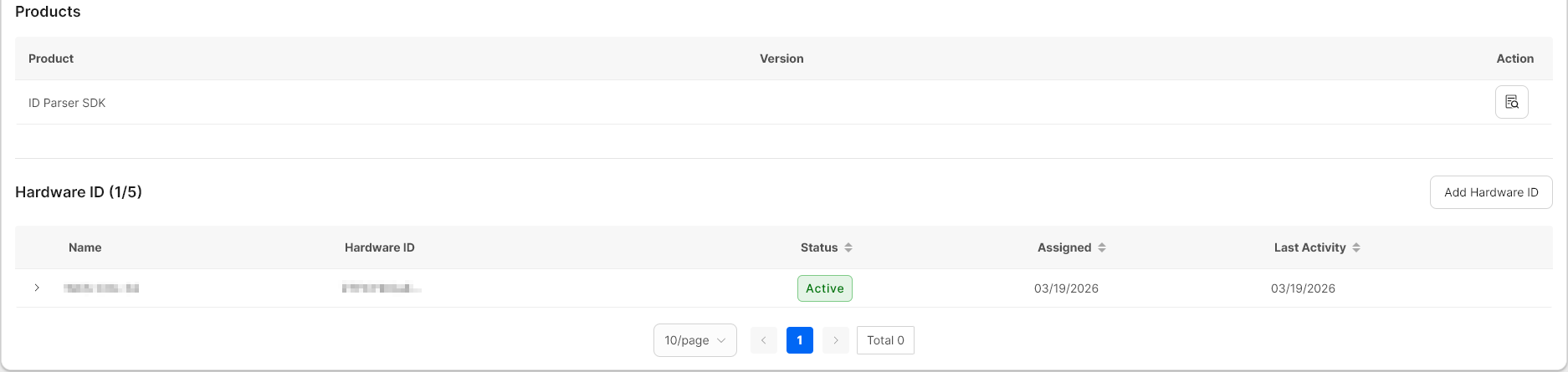
- Click Add New Hardware.
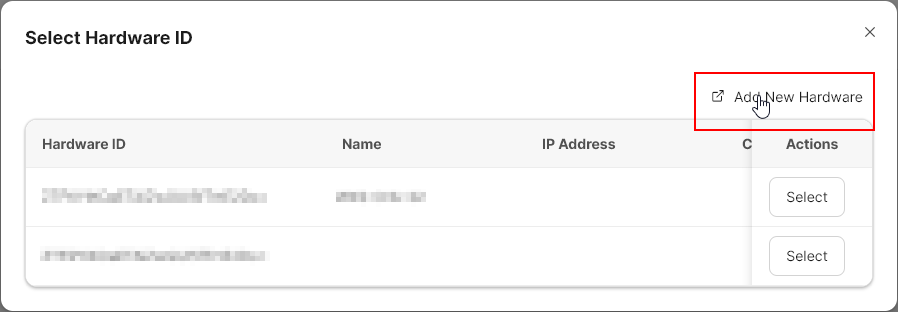
- Fill out the form — the only required field is Hardware ID — and click Add.
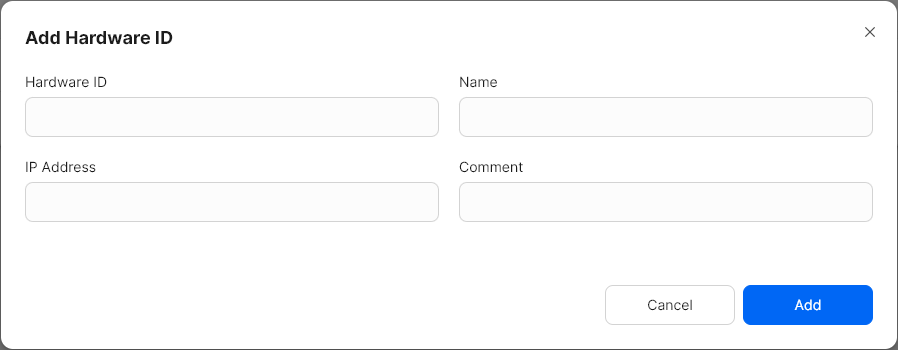
Command Line Interface (CLI) — Use the App Manager Command Line Tool to bind the HWID to your license. This method is ideal for bulk management of multiple devices. Refer to the App Manager CLI documentation for detailed instructions.
Contact Support — Reach out to IDScan.net support with your Hardware ID(s) and they can handle the binding on your behalf.
Offline Licensing
Use this path when the target device does not have internet access.
Step 1: Generate a Hardware ID
- Download the HWID generation utility (see TODO note above) on any internet-connected device and transfer it to the target device.
- Run the utility on the target device to generate its hardware ID.
Step 2: Bind the License to the Device
Choose one of the following methods to bind the HWID to your license:
my.idscan.net Portal
- Log in to my.idscan.net, navigate to the license management section, and open the license you want to bind.
- Click Add New Hardware.
- Fill out the form — the only required field is Hardware ID — and click Add.
Command Line Interface (CLI) — Use the App Manager Command Line Tool to bind the HWID to your license. This method is ideal for bulk management of multiple devices. Refer to the App Manager CLI documentation for detailed instructions.
Contact Support — Reach out to IDScan.net support with your Hardware ID(s) and they can handle the binding on your behalf.
Step 3: Download and Deploy the License File
- Download the license file from the license page: my.idscan.net → My Products → ID Parser → [Your License] → License page.
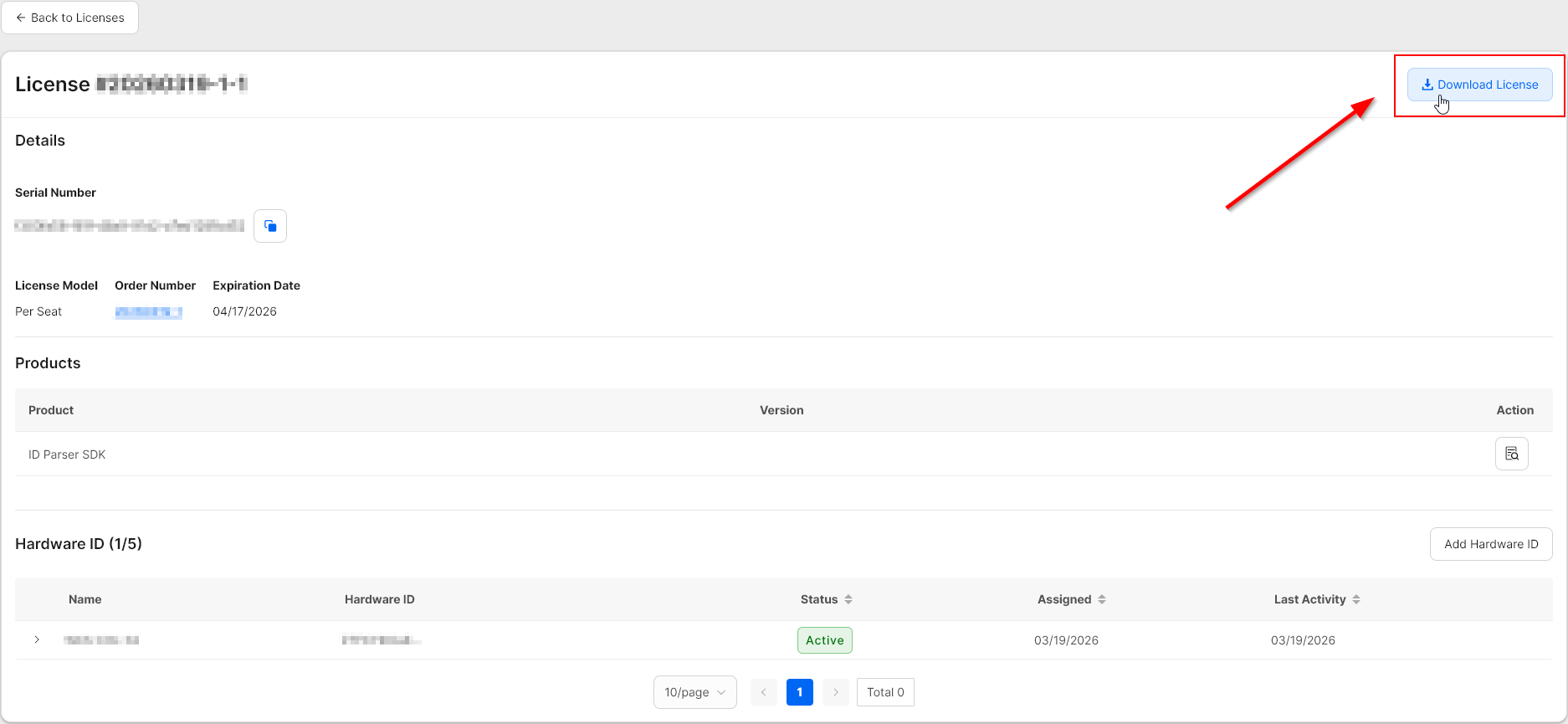
- Transfer the license file to the target device and reference it in your SDK code using
PersistentLicenseController.